 Definitive Glossary
Every team has its own jargon: acronyms, product names and words that mean something specific inside the company. A glossary stops new starters from guessing, and stops three teams defining the same word three different ways. Confluence Cloud gives you several ways to build one. Here they are, from the simplest to the most complete.
The four options at a glance
| Glossary page | Page Properties | Rovo AI | Definitive Glossary | |
|---|---|---|---|---|
| Definitions on hover, on every page | No | No | Yes, written by AI | Yes, approved by you |
| Approval before a definition goes live | No | No | No | Yes |
| Owners and review dates | By hand | By hand | No | Built in, with reminders |
| Change history | Page history | Page history per term | No | Audit log per term |
| What you need | Nothing extra | Nothing extra | Atlassian AI turned on | The app (free up to 10 users) |
1. A single glossary page
The quickest start, and fine for a small team with up to about 50 terms.
- Create a page called Glossary in a space everyone can read, such as your company handbook.
- Add a table with Term, Definition and Owner columns, sorted A to Z. For a long list, add a heading for each letter so people can jump around.
- To link straight to a term from another page, put an Anchor macro next to it and link to that anchor.
- Link the glossary from your space overview and your onboarding pages.
The catch: readers have to leave the page they're reading to look a word up, so most don't. With no owners or review dates, definitions quietly go out of date.
2. One page per term, with Page Properties
More work to set up, but each term gets its own owner, comments and history.
- Create a parent page called Glossary.
- For each term, create a child page titled with the term. Add a Page Properties macro holding a two-column table: Definition, Aliases, Owner and Review date. Give the page a label such as
glossary-term. - On the parent page, add a Page Properties Report macro that shows pages labelled
glossary-term. It builds a sortable table of every term and keeps it up to date.
The catch: it's one page per term, and definitions still aren't visible where people read. Nothing reminds owners when a review date passes.
3. Rovo AI definitions
If your organization has Atlassian's AI (Rovo) turned on, Confluence can highlight terms on a page and show a definition when you hover over them. The definitions are generated from your content, and people can edit them.
The catch: there's no approval step, owner or review date, and it only works while AI is turned on. It's a handy guide to jargon, but not an official glossary. That matters when a definition carries weight, such as a contract term, a compliance term or a metric in a board report.
4. Approved hover definitions with Definitive Glossary
Definitive Glossary turns the terms on your Confluence pages into hover definitions. Only definitions your chosen editors approve go live, and every term has an owner, a review date and a full change history.
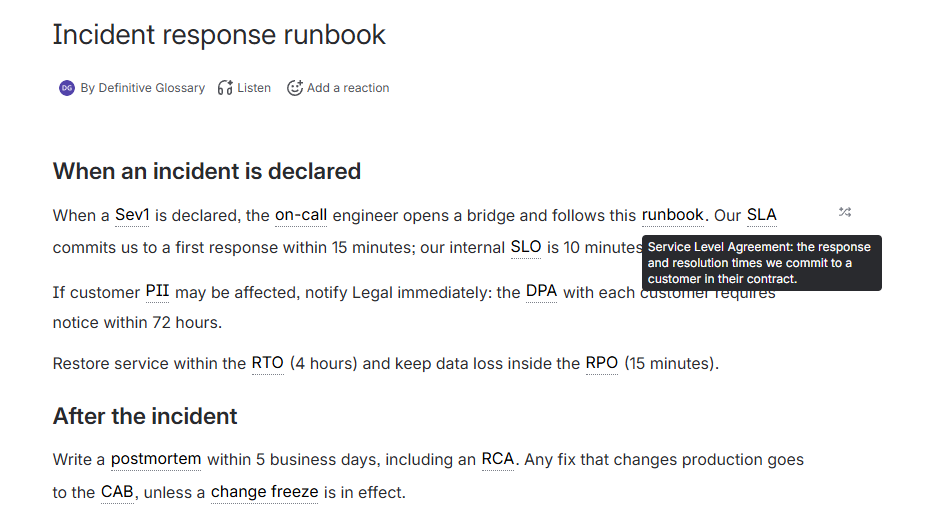
- Install Definitive Glossary from the Atlassian Marketplace. It's free for up to 10 users.
- Open Apps → Glossary. Import your terms from a CSV (such as the free template below) or add them one at a time. In the app's settings, pick who can approve terms.
- On any page, choose ••• → Apps → Glossary links, or link every page in a space in one go. Readers hover over an underlined term to see its approved definition. Nothing to install in the browser.
It also handles space-specific definitions that override the company-wide one, daily review reminders that @mention owners, and an audit log. It runs entirely on Atlassian's cloud, so your glossary never leaves your Confluence site.
Free Confluence glossary template
Don't start from a blank page. Our template has 25 common workplace terms and acronyms (KPI, OKR, SLA, RACI, SOP and more), each with a plain-English definition and aliases.
For a team with its own vocabulary, start from one of our ready-to-import glossaries instead: the Jira glossary, the Agile glossary or the ITIL glossary.
Open it in Excel or Google Sheets and make it yours. Then paste it into a Confluence table (option 1), or import it into Definitive Glossary as it is (option 4).
Tips for a glossary people actually use
- Give every term an owner. Someone has to be responsible when it goes out of date.
- Write for a new starter. One or two sentences, with no unexplained jargon inside the definition.
- Add aliases and spelled-out acronyms, so people find the term however they search for it.
- Set review dates. Definitions go stale as products and processes change.
- Put definitions where people read, not only on a separate page.
FAQ
Does Confluence have a built-in glossary?
Not a dedicated one. You can build a glossary from pages and macros (options 1 and 2), and Rovo can show AI-generated definitions. For approved definitions that appear on hover, use an app.
Can I add hover text or a tooltip to a word in Confluence?
Confluence Cloud has no built-in formatting for your own hover text. Glossary and tooltip apps from the Atlassian Marketplace add it. Definitive Glossary shows your glossary definitions on hover, and a definition you change updates on every page at once.
How do I import a glossary from Excel into Confluence?
For a plain table, copy the cells in Excel and paste them into the Confluence editor. For hover definitions, save the sheet as a CSV with term and definition columns (plus optional aliases, status and space) and import it into Definitive Glossary. See the CSV format.
Can different teams define the same term differently?
With Definitive Glossary, yes. A space can override a company-wide definition, so the support team's "on-call" can mean something different from engineering's, while everyone else sees the company definition.
Make every definition official
Approved hover definitions on every Confluence page, with owners, review reminders and an audit trail. Free for up to 10 users.